How to Import MBOX to Spark Email on Mac & Windows?

Do you have some MBOX files that you want to import in Spark Mail urgently but wondering how to import MBOX to Spark email client on Mac? Frequently looking for a safe and easy way to implement the required task? No worries, simply keep reading the segment and you will encounter a brilliant solution that will help you to precisely import MBOX to Spark with accurate emails and attachments.
Spark Mail is just like any other email application. It is developed by Readdle to manage both incoming and outgoing emails. Currently, the email client has introduced the Spark Mail AI feature, equipped with two main options i.e. writing feature and quick replies. Writing allows you to craft smarter emails with the help of OpenAI & ChatGPT. The quick replies help in determining the response as well as allow to send any agreement or disinterest in an email that does not require a detailed response. This is one of the biggest reasons, why users these days are migrating to Spark Mail.
MBOX is just a plain-text file format that acts as a container for an email client as it stores the list of users’ email messages and attachments. The file is supported by a variety of email platforms but unfortunately, Spark Mail is not one of them. Thereby several users face challenges when they try to import MBOX files into Spark Mail.
How to Import MBOX to Spark Email on Mac & Windows?
The simple and cost-effective way to import MBOX files into Spark email client is MacMister MBOX Converter for Mac & Windows. The tool allow users to batch import MBOX emails and attachments into Spark Mail at once without facing any alteration in original files. It is designed with an intuitive and user-friendly environment so that all technical and non-technical users can operate the software effortlessly and safely import MBOX files into Spark with ease. The application will successfully finish the entire procedure in a few seconds as it is programmed with a three-step process.
Moreover, the software provides outstanding features so that users can import MBOX to Spark Mail according to their requirements. However, it also provides a trial edition so that users can analyze and experience the working process for free.
Working Steps to Import MBOX to Spark Mail on Mac
Step 1. Download and open MBOX to Spark Mail Tool on the Mac system.
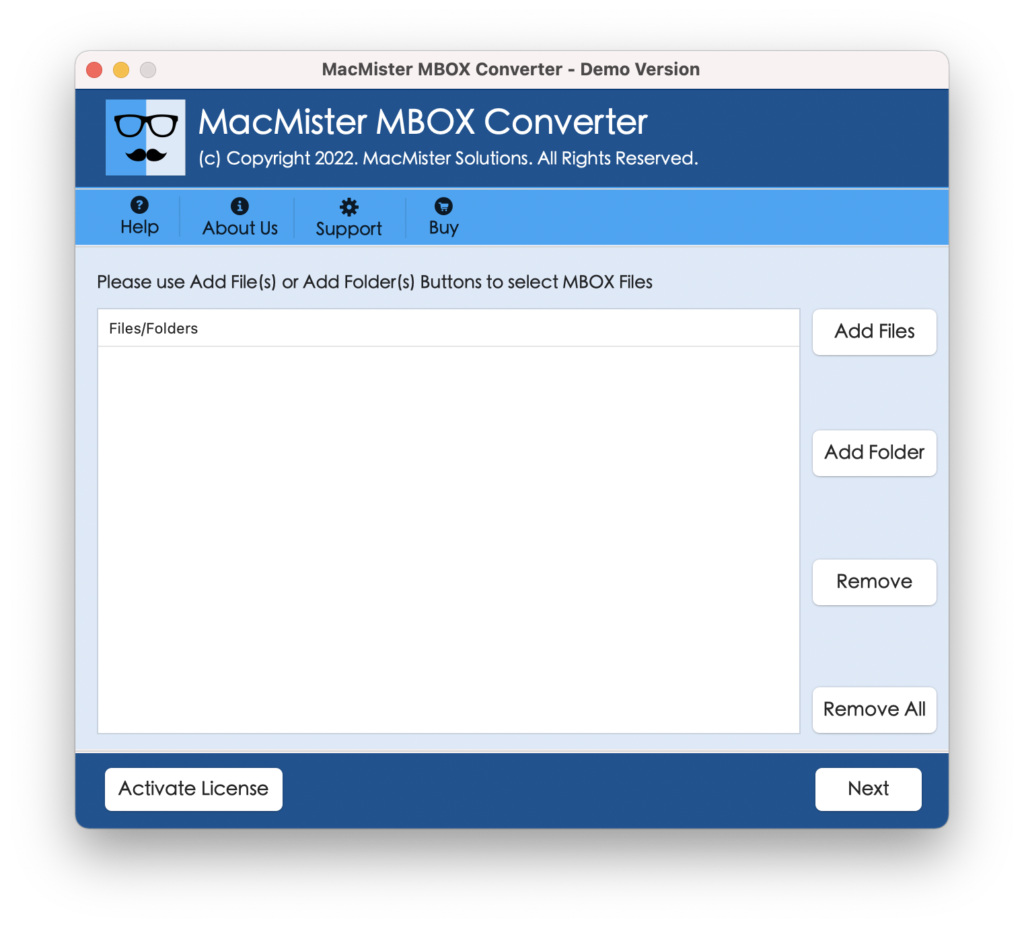
Step 2. Add MBOX files on the application by utilizing dual options i.e. Add File(s) and Add Folders. If you have a few MBOX files to import, then click the Add File(s) option or if you have a folder of multiple MBOX files, then tap the Add Folders option. Click Next to open the next window.
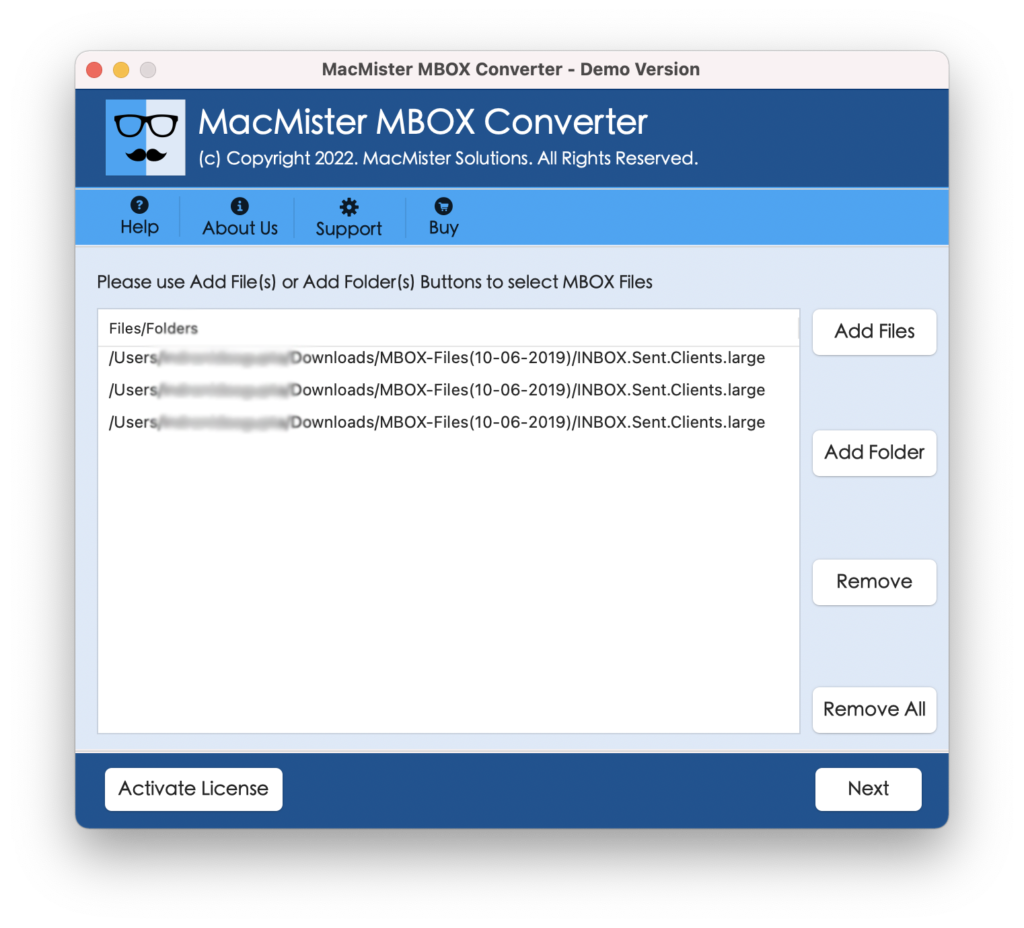
Step 3. The application will load MBOX files with selected checkboxes one-by-one in the software window. However, you can set the checkboxes as per your requirements if you want to import selected MBOX files into Spark Mail. Click Next to continue.

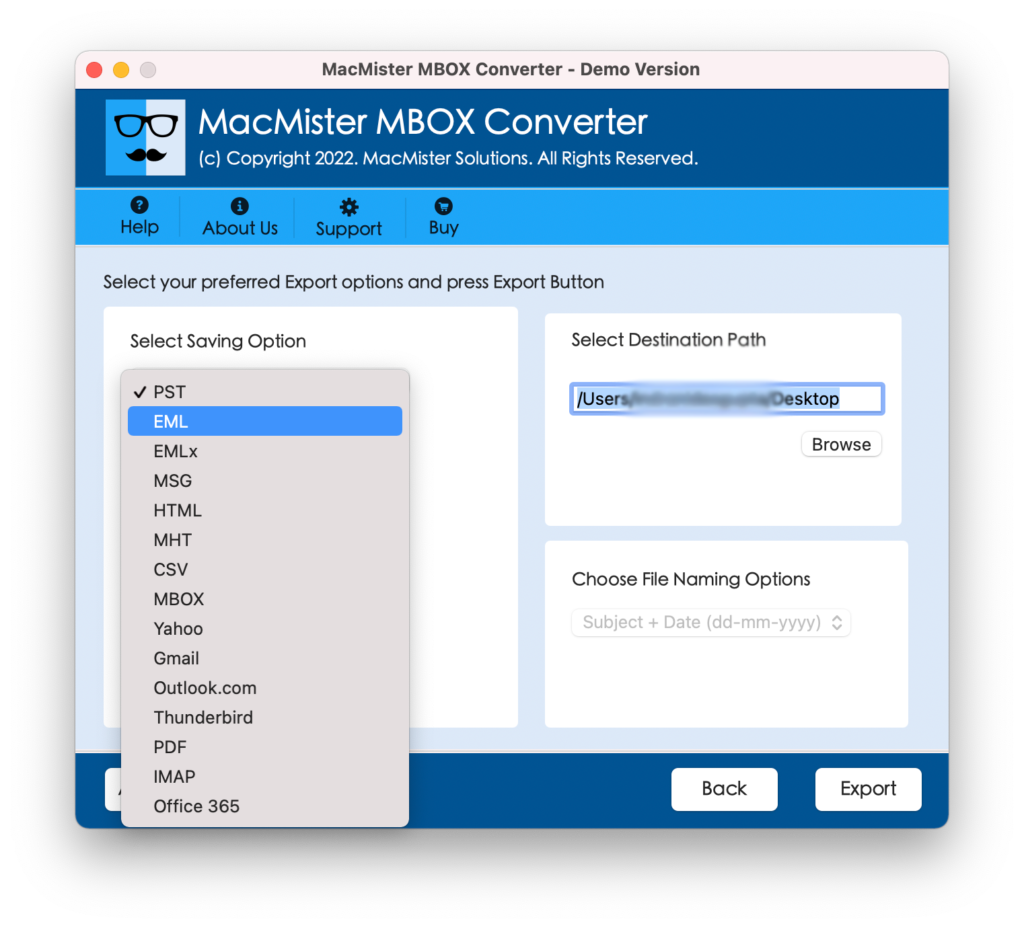
Step 4. Click on the Select Saving Options and choose the IMAP option from the list of options.
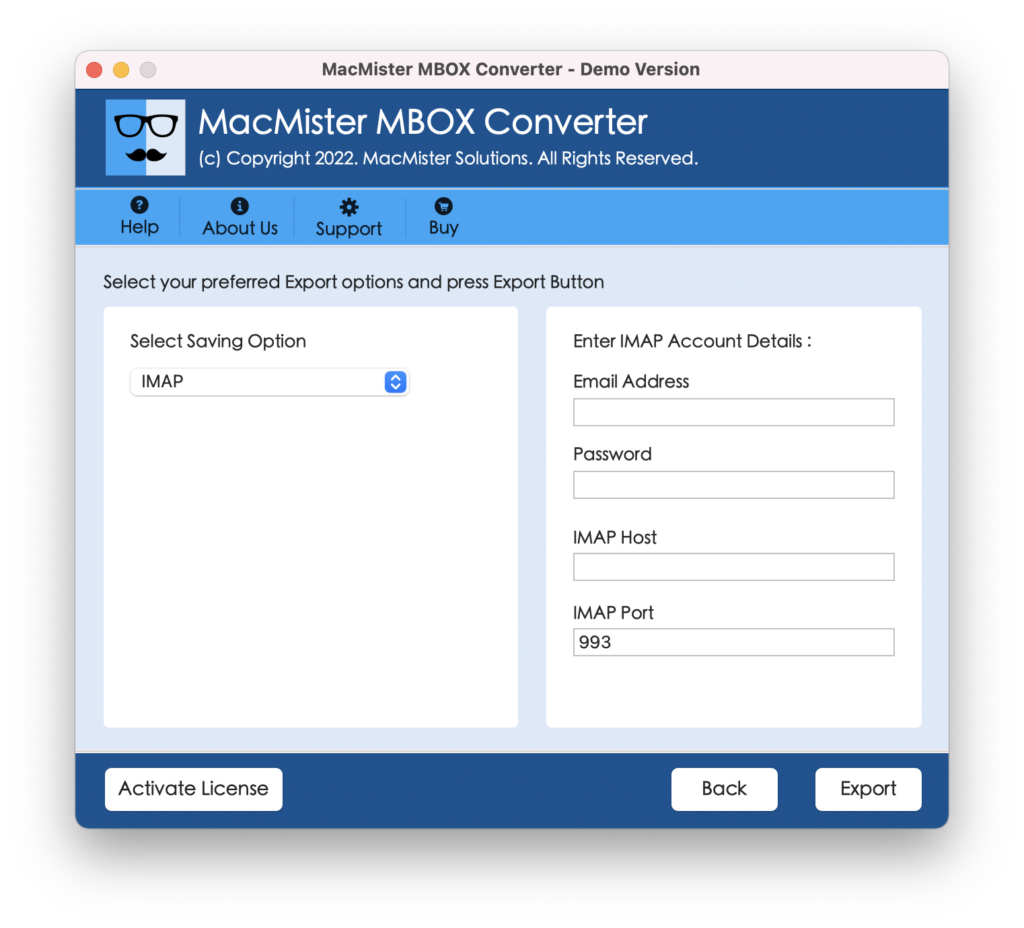
Step 5. Provide the necessary details i.e. email address, password, IMAP host, and port number. Last, hit the Export button to import MBOX emails into Spark Mail.
Step 6. The application will show a Live Conversion Report which displays the live import progress of MBOX files.
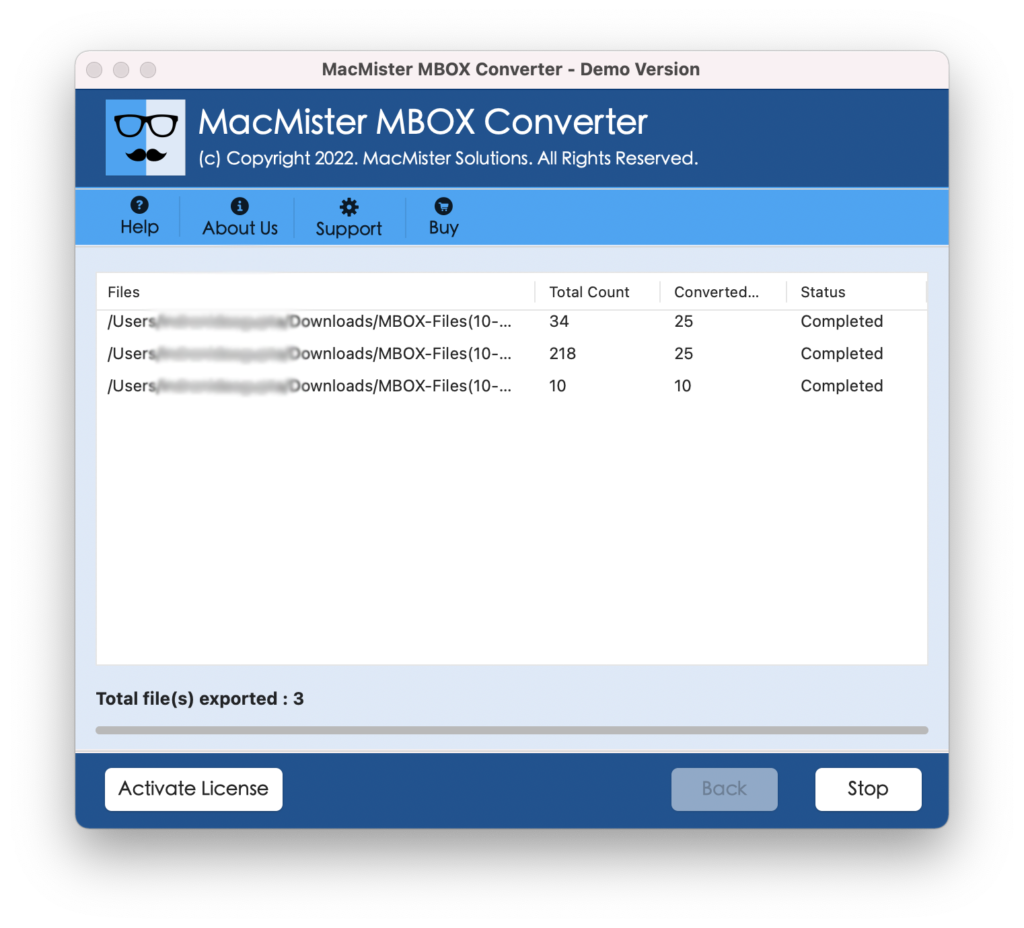
The entire conversion will end in a few seconds and then a pop-up will appear with a message confirming that the tool has successfully converted MBOX files to Spark Mail. Click on OK and then log in to Spark Mail to check imported files. However, after opening the required imported file, you will see that the email appears with an accurate layout, formatting properties, and content. Still, if you come across any modification in your files, then you may contact MacMister Support right away.
What are the benefits of using MacMister MBOX to Spark Mail Tool?
MacMister MBOX to Spark Mail is available for both Mac & Windows users. It is one of its important benefits. Also, the app is free from complexities. There are no complicated steps included, users can simply add an MBOX files folder, choose the required saving option, and then clicking the Export option will immediately import all MBOX files to Spark Mail in a few seconds. It has a plethora of benefits, some of which are highlighted below-
- Directly import MBOX files into the Spark Mail email client on Mac & Windows.
- Allows to safely add essential MBOX files folder on the tool with the help of Add File(s) and Add Folder options.
- Introduced with a user-friendly and simple platform so that all users can quickly import MBOX emails and attachments to Spark.
- Make sure to protect the login details of the IMAP account when importing MBOX files.
- Enable users to batch import MBOX files to Spark at once without losing data integrity.
- MBOX emails will appear with original content and correct layout after the process.
- Live Conversion Report will show the details of an ongoing process of MBOX files.
- Run and operate the app on all Mac OS versions including macOS Sonoma.
- Windows version is also available, thereby Windows users can download the tool on Windows 11 and earlier versions.
Epilogue
The write-up here explained a wonderful method to import MBOX to Spark Mail with emails and attachments. The discussed solution is 100% safe and delivers precise results in less time. Any technical and novice user can independently operate the app and easily import necessary MBOX files into Spark Mail without needing expert support. Also, there are total 15+ saving options present including IMAP, which means users can also use the tool to import MBOX to PST Mac, OLM, MSG, EML, CSV, EMLx, DOC, CSV, Yahoo, Thunderbird, G Suite, Office 365, Outlook.com, Gmail, and more.