Easy Guide: How to Migrate Thunderbird Mail to Outlook 365

As more businesses embrace Microsoft’s Office 365 for its convenient cloud services, the need to shift from Thunderbird to Office 365 becomes evident. Office 365 ensures secure communication and seamless document collaboration, making it a popular choice among organizations. Administrators often seek ways to smoothly migrate Thunderbird emails to Office 365, leveraging its Exchange online server advantages and browser accessibility. Whether you’re a business or home user, this guide is tailored to help you navigate this transition effortlessly. Dive in to learn more about making the switch.
So, before we explore various methods to transfer Thunderbird’s MBOX files to an Office 365 account, let’s quickly talk about why people opt for this migration in the first place.
Why Switch from Thunderbird to Office 365: Key Reasons
Here are the reasons why people switch from Thunderbird to Microsoft’s cloud services through Office 365:
- Office 365 provides integrated tools that make data sharing, communication, and teamwork easier.
- With Office 365, you can move to Microsoft’s cloud services with flexible monthly rental options.
- Enjoy improved security and dependable data storage thanks to Office 365’s cloud servers.
- Choose from a variety of subscription plans tailored to fit the size and needs of your organization.
- Access emails and use applications directly through your browser on any device, giving you more mobility.
- Get unlimited access to popular Office applications like Word, Excel, Skype, and more, boosting your productivity.
Easy Steps to Migrate Thunderbird Mail to Office 365 Manually:
Step 1: Exporting Emails from Thunderbird to Your Computer
- Create a new folder on your Desktop.
- Open Thunderbird on your computer.
- Find the folder in Thunderbird with the emails you want to transfer.
- Select all the emails in the folder using Ctrl+A.
- Right-click on the selected emails, choose ‘Save As’, and save them to the new Desktop folder.
Step 2: Importing Emails to Office 365
- Open Outlook.
- Locate or create a new folder for the Thunderbird emails.
- Use the ‘New Folder’ option under the ‘Folder’ tab to create a new folder and give it a name.
- Double-click on the folder to open it.
- Drag and drop the emails from the Desktop folder into the new folder in Outlook.
Another Option: Email Forwarding
An alternative way to move Thunderbird emails to Office 365 is by forwarding them as attachments. Here’s how it works:
- Open Thunderbird on your Windows PC.
- Select the emails you want to transfer to your Office 365 account.
- Right-click on the chosen emails and select ‘Forward as Attachment’.
- In the new email window, attach the emails as EML files, enter your Office 365 email ID, and hit send.
- Next, open your Office 365 application and check the received email to view the forwarded messages.
Drawbacks of This Method
- Not Ideal for Big Loads: Trying to move a large number of emails (like over 1000) using this method isn’t feasible.
- Takes Time: Transferring emails one by one from Thunderbird to Office 365 can be quite time-consuming.
- Sluggish with Large Files: Forwarding many emails with hefty attachments to Office 365 can be slow.
- Potential for Data Changes: There’s a risk that some emails may experience formatting alterations or SMTP header adjustments during the transfer.
A Smoother Approach to Transition from Thunderbird to Office 365
Often, businesses find the manual method of moving Thunderbird to Office 365 less than ideal. Many prefer a professional solution that can migrate multiple mailboxes at once. They seek third-party software that simplifies the process of importing Thunderbird emails to Office 365.
One such dependable and effective tool is the MacMister Thunderbird Converter tool. It’s particularly beneficial for large companies transitioning their IT infrastructure to the O365 cloud. This tool ensures the transfer of entire email folders without any loss of data or compromise to data integrity.
Easy simple three steps to Import Thunderbird Mails to Outlook 365
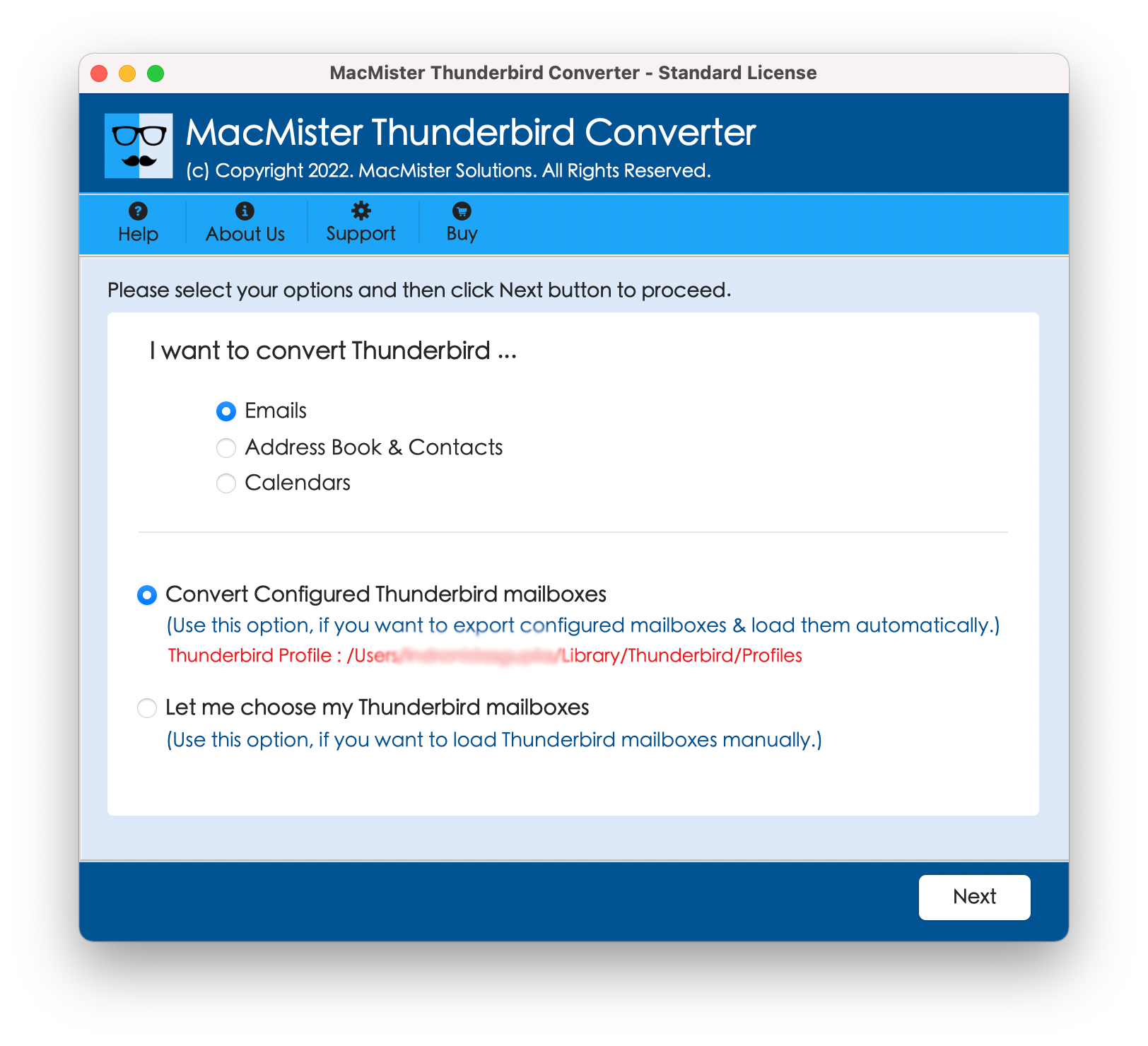
Import the Thunderbird MBOX file into the software.
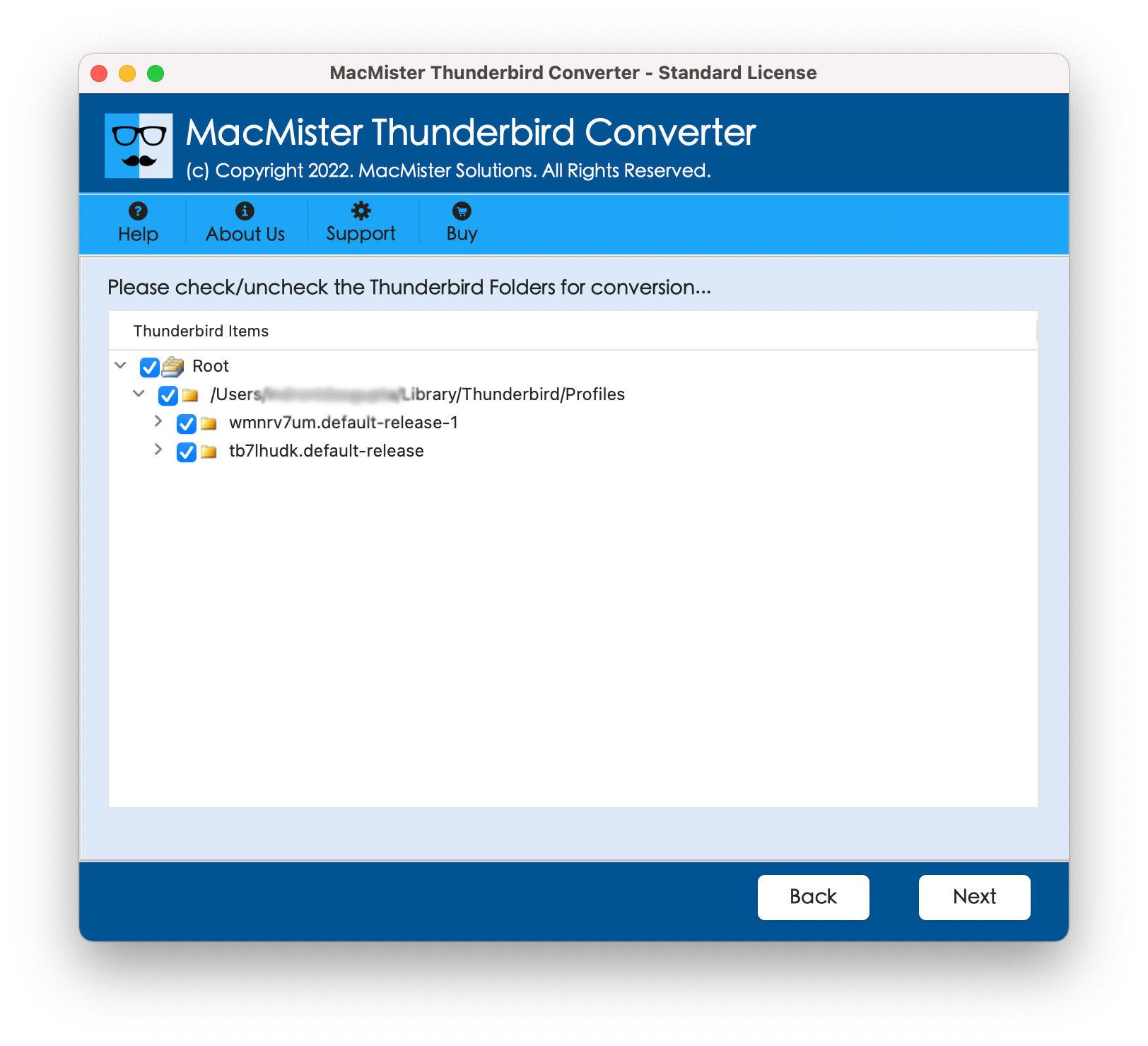
Check the Folder hierarchy and MBOX file data into the Software interface
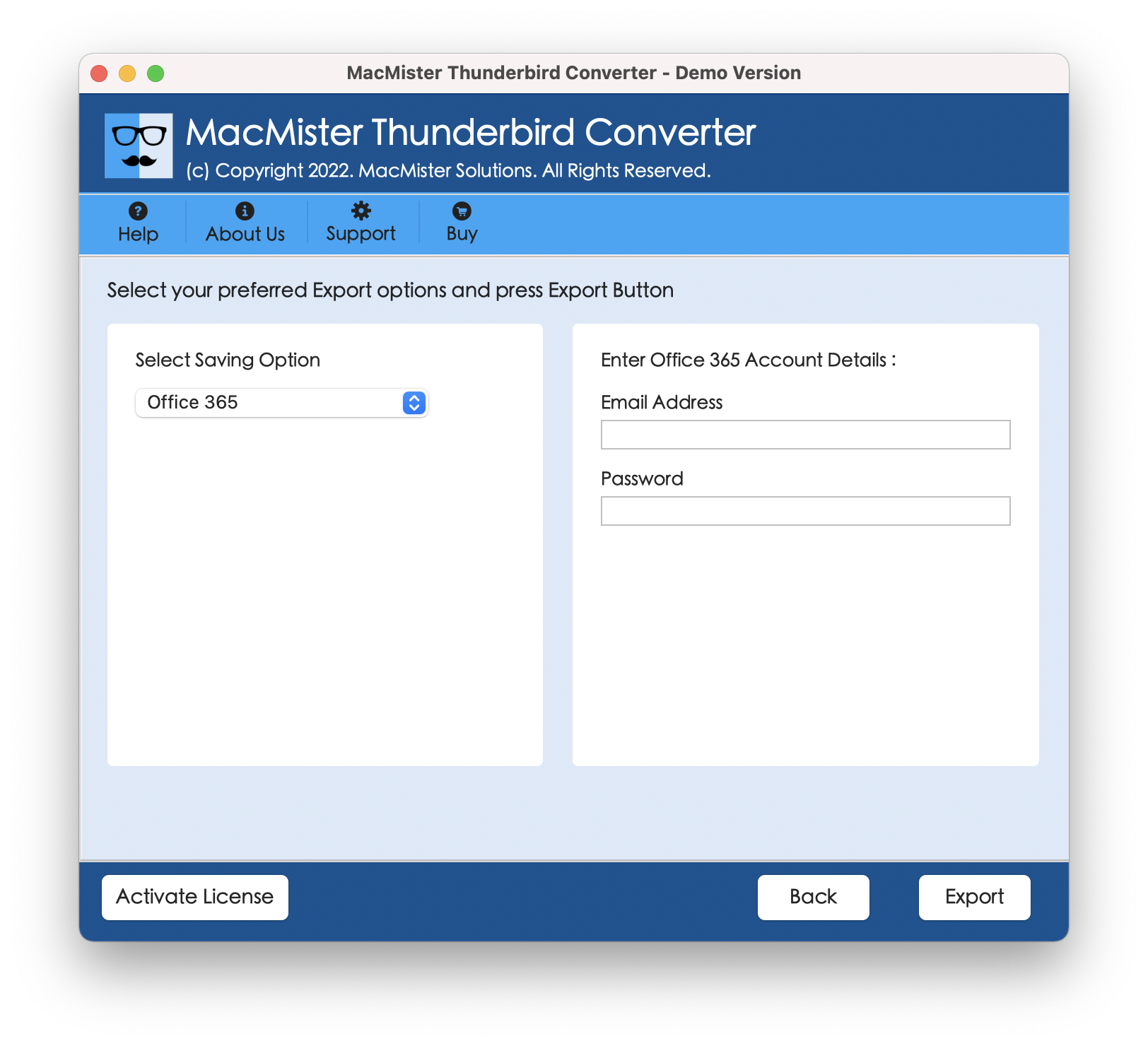
Add Outlook 365 details (Email Address and Passwrord)
Apply any necessary filters, then click ‘Export’ to begin the migration process.
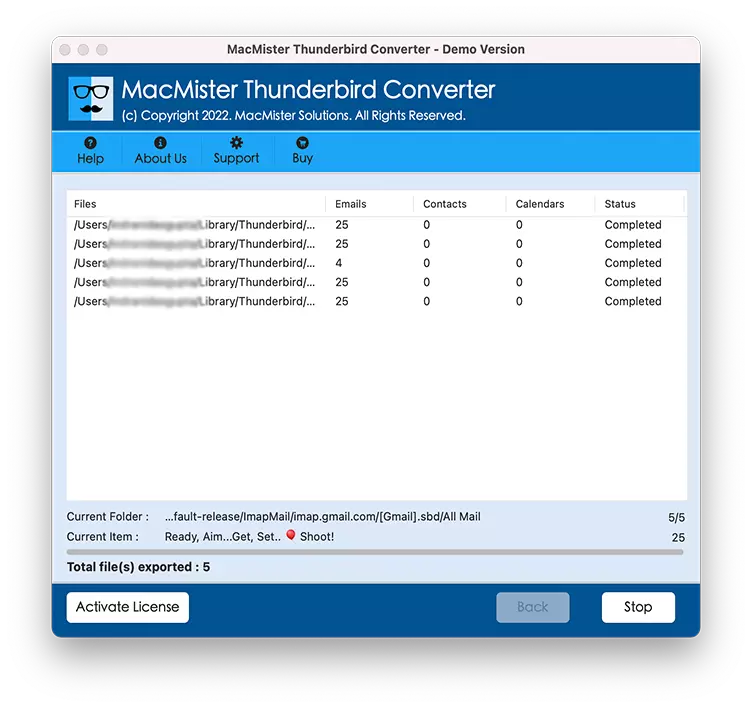
At Last
Many businesses, both large and small, are drawn to Microsoft’s cloud technology. It offers the full Office suite, including Exchange online server and Outlook 365 Mail App, at an affordable price. This makes it possible for enterprises to transition Thunderbird email to Office 365. This post outlines a cumbersome manual method for migrating multiple mailboxes and also introduces a suitable automated solution, simplifying the task for administrators. We hope this guide will help you to know How to Migrate Thunderbird Mail to Outlook 365.